We do not store credit card details.
Raspberry Pi Compute Module 3+ Development Kit (CM3+ DEV. KIT)
We do not store credit card details.
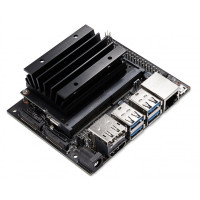
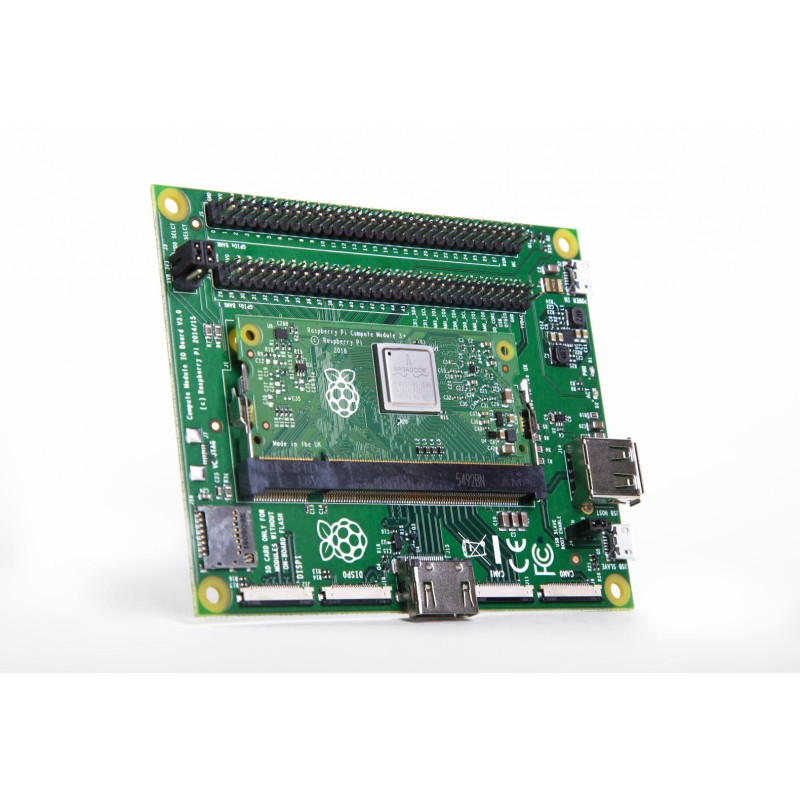
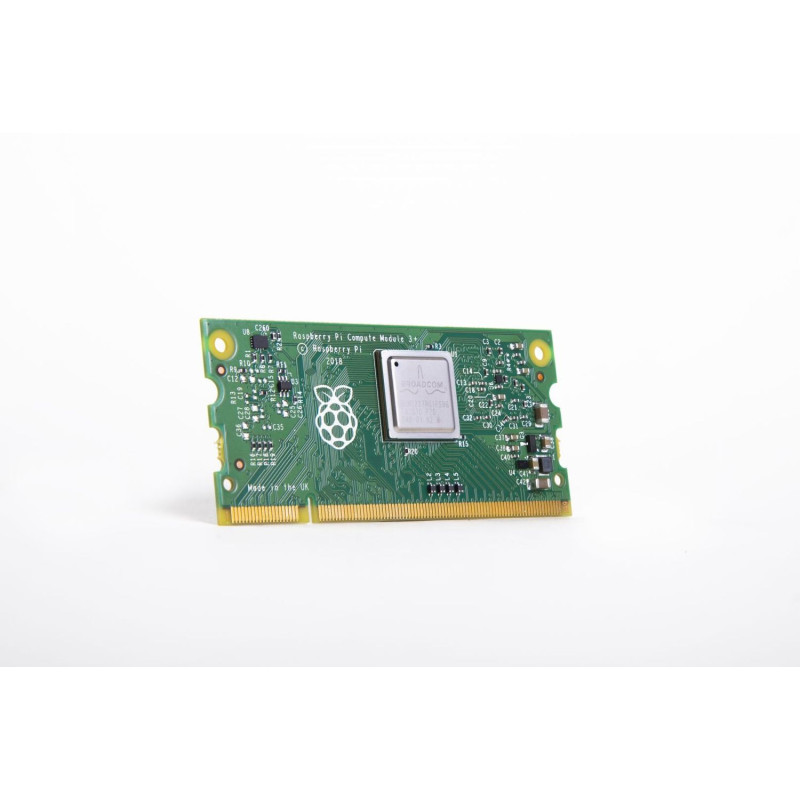
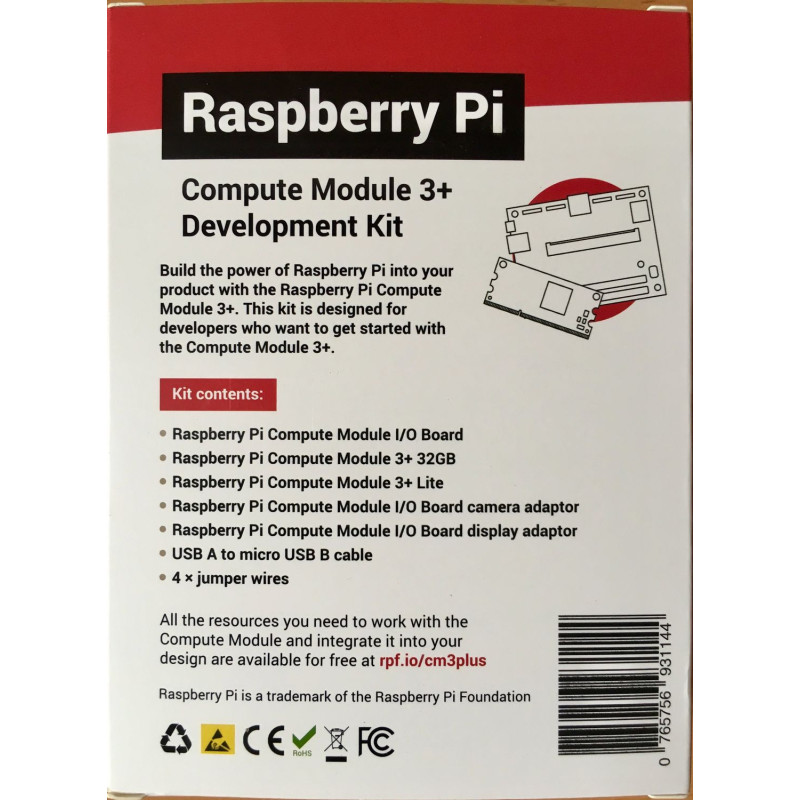
The Raspberry Pi Compute Module 3+ Development Kit is a set for developing industrial solutions on Raspberry Pi Compute Module modules. It allows you to test all the features and write software for the full line of modules of this company: CM3+, CM3+/Lite, CM3, CM3 Lite, and CM1.
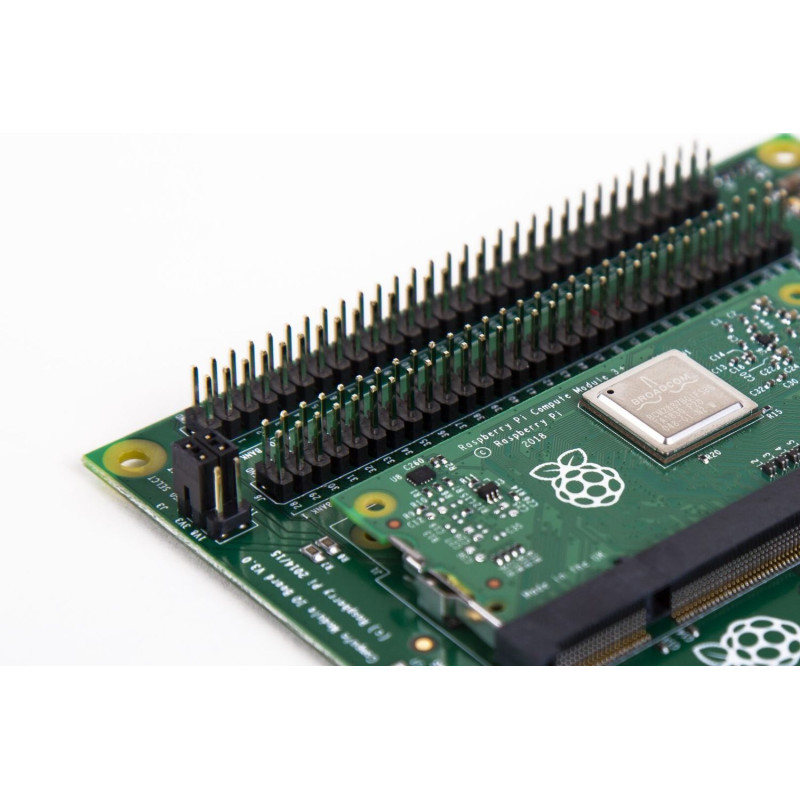
The basis of this set is the CMIO (Compute Module Input Output) board, which contains all the hardware of the modules. This does not limit the capabilities of the modules themselves and allows engineers to understand which components will be needed and which can be neglected in a commercial solution. It contains 120 GPIO pins, an HDMI port, a USB port, two camera ports and two display ports.
The package includes:
- 1 x CMIO v3 board.
- 1 x Raspberry Pi Compute Module 3+ / 32GB computer module.
- 1 x Raspberry Pi Compute Module 3+ Lite computer module.
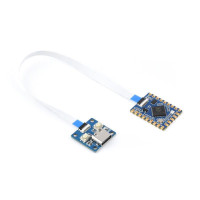
- 1 x CMCDA adapters (the board is divided into one camera adapter and one display adapter).
- 2 x flexible cables with a pitch of 0.5 mm and a length of 50 mm for the CMCDA board.
- 1 x USB B to USB A cable.
- 4 x conductors with a set of mother-mother contacts (20cm).

Note: A power supply (not included) is required for operation, such as the Raspberry Pi Power Supply
Instructions for the first power-up:
- Initial setup and checks
Installing the Compute Module (CM) on the I/O Board: First, insert the CM at a 45-degree angle, and then gently press down on both top corners of the CM (where the holes are) until it clicks into place. - Checking the IO bank voltage jumpers
Please make sure that the two voltage supply jumpers GPIO0 and GPIO1 are on the J3 connectors and are set to the voltage you want to use (3.3V or 5V).
Do not turn on the board if these jumpers are not attached (and therefore the GPIO pins are not powered), as this may damage the module. - Power Supply.
Make sure the CM is properly inserted into the connector (J1).
Make sure the GPIO banks are powered (make sure J3 has jumpers and is installed correctly).
Connect the micro USB power supply to J2 (POWER IN) to power the board.
Note that at this point, the red POWER LED and the green ACT LED should light up. Nothing else should happen (since the Flash computing module (eMMC) is empty). - Downloading the OS image and further documentation
The next step is to write the operating system image to the built-in eMMC Flash. Once this is done, the board should boot to the OS of your choice when you turn on the power.
There are no reviews for this product.
There are no reviews for this product, be the first to leave your review.
No questions about this product, be the first and ask your question.